Analyzing Pavement Distress Data in MicroPaver

A couple of weeks ago I explained how to collect pavement distress information for the MicroPAVER™ software.

You probably recorded surface conditions on the paper forms we recommended. If you hired a contractor or used a field data collection computer, you may already have them in digital format, a spreadsheet or a database file.

Let’s take a look at the process of entering this information in MicroPAVER™.

If you have paper records you will have to type the information in the computer manually. This can be accomplished in the Distress Inventory window, which you can launch by clicking the PCI button on the toolbar.

MicroPaver Pavement Distress Inventory Window

If you already have a digital file of all your surface distress data, you can simply upload these files using the MicroPAVER™ import functions.

With the distress data loaded you can begin analyzing the information. Simply click the Calculate Conditions button. This will open the condition index window and compute the pavement condition index (PCI) for the segment you are on.

MicroPaver Pavement Condition Index (PCI) calculation

The PCI is a number between 0 and 100 that represents the average condition of the pavement in a specific segment.

A value of 100 indicates an excellent condition rating, while 0 is the worst. Most users will split this scale into 7 levels. Others use only 3 levels, such as adequate, degraded and unsatisfactory.

MicroPAVER PCI Categories

The PCI is calculated from 3 inputs:

  • the distress type (one of the 19 types on the MicroPAVER™ form)
  • the distress quantity (the square footage or length of a specific distress)
  • the distress severity (considers the condition rating you assigned to each distress)

To visualize the meaning of the pavement condition index look at the table below. The PCI was divided into 7 different categories from “good” to “failed”. You can also see the “remaining life” of the pavement in each group, as well as, a short list of rehabilitation options.

MicroPaver pavement condition index (PCI) table

Each of the rehabilitation options has a price (per mile) associated with it. Now you can estimate the cost of repairing a specific street segment, and return it to good condition.

Of course, MicroPAVER™ allows you to calculate the PCI’s for all segments in your network. This will tell you, for instance, how many miles of street network are in “very poor” (PCI: 26 – 40) condition, and how much money you would have to spend to get them back in “good” shape.

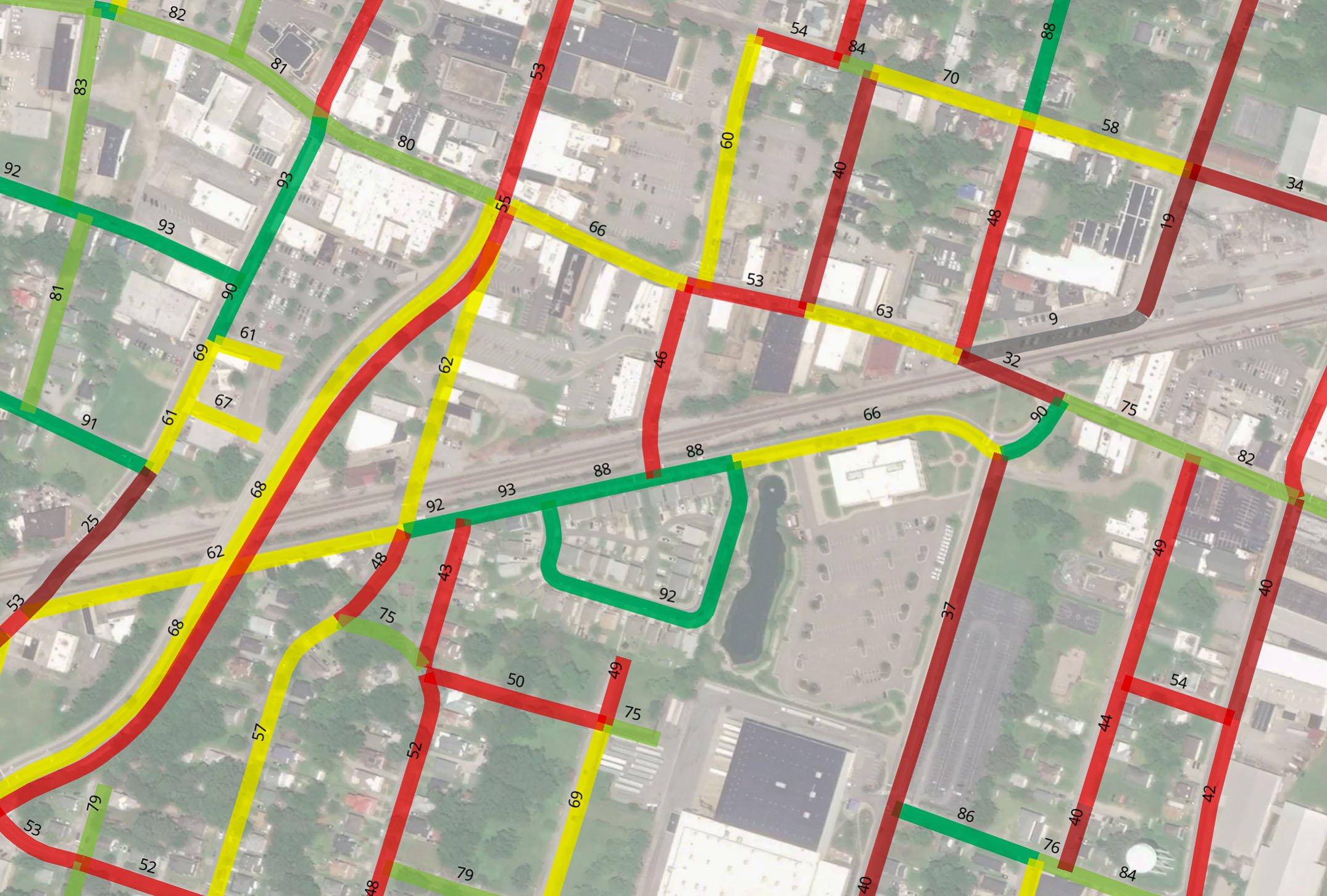
In 2 weeks we’ll talk more about reporting. You will learn how to display MicroPAVER™ data in a GIS to visualize the PCI on your street center line map.

Do you have any questions about the pavement condition index and how to compute it in your software? Don’t hesitate to call us at (877) 263-5589 x4.

About Kurt Novak

Dr. Novak is the founder and chairman of Transmap Corporation. Connect with him on Google+
This entry was posted in pavement and tagged , , , . Bookmark the permalink.

3 Responses to Analyzing Pavement Distress Data in MicroPaver

  1. Pingback: Using the MicroPaver Pavement Management System to Create Reports | Transmap Corporation

  2. Pingback: Pavement Management and Preservation Strategies | Transmap Corporation

  3. Pingback: Pavement Management and Preservation Strategies | Transmap's Blog

Leave a Reply

Your email address will not be published. Required fields are marked *

*

You may use these HTML tags and attributes: <a href="" title=""> <abbr title=""> <acronym title=""> <b> <blockquote cite=""> <cite> <code> <del datetime=""> <em> <i> <q cite=""> <strike> <strong>